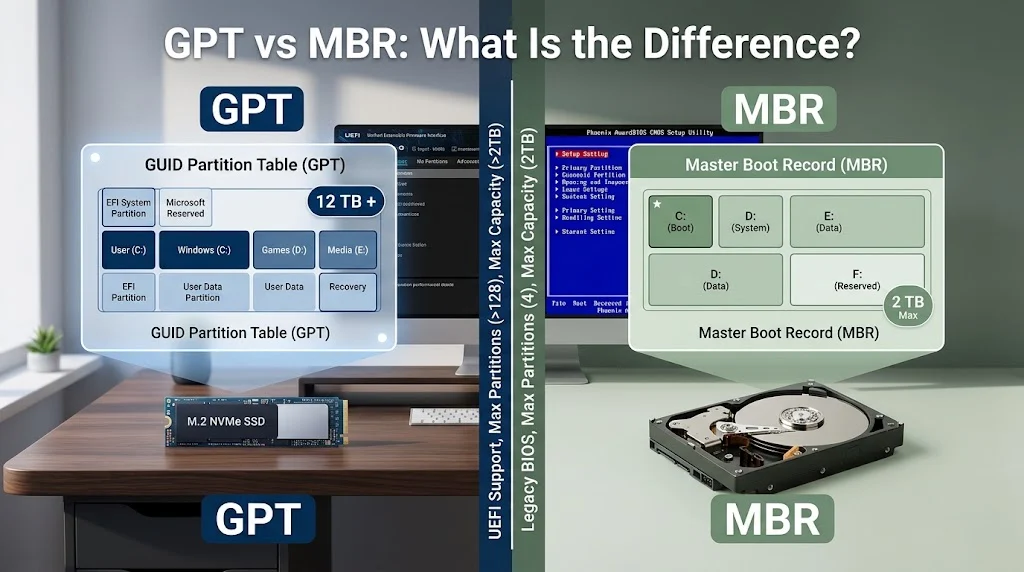
GPT or MBR refers to two disk partitioning methods used to organize storage devices such as hard drives and SSDs. GPT, or GUID Partition Table, is the modern standard that supports large drives and more partitions, while MBR, or Master Boot Record, is an older format with compatibility advantages on legacy systems.
Choosing between GPT and MBR can affect how your computer boots, how much storage it can use, and how easily it supports modern hardware. GPT is generally the better choice for computers running Windows with UEFI firmware, especially when using large SSDs. MBR remains useful for older computers that rely on legacy BIOS. Understanding these differences helps you avoid installation errors, boot problems, and unnecessary data loss when changing a disk’s partition style.
GPT vs MBR: What Is the Difference?
GPT and MBR are both partition table formats that tell an operating system how a storage device is divided into partitions. They differ in storage capacity support, partition limits, boot compatibility, and reliability. Microsoft recommends GPT for modern systems that support UEFI and MBR for older hardware that requires legacy BIOS compatibility.
Microsoft Learn
+1
| Feature | GPT | MBR |
| Full form | GUID Partition Table | Master Boot Record |
| Partition type | Modern partitioning scheme | Traditional partitioning scheme |
| Maximum disk size | Supports disks larger than 2 TB | Generally limited to about 2 TB with standard 512 byte sectors |
| Partition limit | Windows commonly supports up to 128 partitions on a basic GPT disk | Four primary partitions, or three primary partitions plus an extended partition |
| Boot compatibility | Designed for UEFI booting | Traditionally associated with legacy BIOS booting |
| Data protection | Stores backup partition table information and uses checksums | Does not provide the same backup and checksum protections |
| Modern Windows installation | Preferred for UEFI systems | Suitable for supported legacy BIOS configurations |
| Best use | Modern computers, large drives, and flexible partitioning | Older computers and legacy compatibility |
Quick recap: GPT is generally the better choice for new computers and large drives. MBR is useful when older hardware or software requires it. The correct option depends on your firmware and operating system, not simply on whether you use an HDD or SSD.
Microsoft Learn
+2
Is GPT vs MBR a Technical, Compatibility, or Usage Issue?
The difference between GPT and MBR is primarily a technical and compatibility issue rather than a vocabulary or grammar issue. They are distinct disk partitioning methods, and you cannot treat their names as interchangeable when configuring a computer.
In professional IT environments, GPT is commonly used for modern UEFI based Windows installations, enterprise storage, and high capacity disks. MBR remains relevant for older devices, legacy boot environments, and certain compatibility requirements.
For everyday users, the difference becomes important when installing Windows, preparing a bootable drive, upgrading hardware, or troubleshooting a message that says Windows cannot be installed because the disk uses the wrong partition style.
The important distinction is that GPT and MBR describe how a disk is partitioned, while UEFI and BIOS describe firmware interfaces used to start a computer. These technologies work together, but they are not the same thing.
Microsoft Learn
+1
GPT: Meaning, Advantages, and Practical Uses
GPT stands for GUID Partition Table. It is a modern partitioning standard that supports large storage devices, numerous partitions, and additional safeguards for partition metadata.
Workplace example
A business upgrading its workstations to newer computers may choose GPT for system drives. This supports modern UEFI installation configurations and simplifies management of systems that need multiple partitions.
Academic example
A computer science student studying operating systems may use GPT to understand how partition entries identify individual sections of a disk. The partition table helps the operating system locate and manage those sections.
Technology example
A user installing Windows 11 on a UEFI compatible computer will generally use a GPT formatted system disk. GPT also allows Windows to access storage beyond the traditional MBR capacity boundary, provided the operating system and hardware support it.
Microsoft Learn
+1
GPT usage recap: Choose GPT for most modern Windows installations, high capacity drives, and systems designed to use UEFI. Check your computer’s firmware and operating system requirements before changing an existing disk.
MBR: Meaning, Advantages, and Practical Uses
MBR stands for Master Boot Record. It is an older partitioning scheme that stores partition information in the disk’s initial sector. It has been widely used in traditional PC systems and remains relevant where legacy compatibility matters.
Workplace example
A technician maintaining an older computer that boots through legacy BIOS may retain an MBR system disk. This avoids introducing a partition style that the existing boot configuration cannot use.
Academic example
An IT student learning the history of personal computing may examine MBR to understand traditional disk layouts, active partitions, and the boot process on older systems.
Technology example
A technician preparing a drive for an older device may select MBR if the device’s firmware or operating system specifically requires it. However, a standard MBR disk cannot use the full capacity of a disk larger than approximately 2 TB with 512 byte sectors.
Microsoft Learn
+1
MBR usage recap: Choose MBR when legacy hardware or a specific compatibility requirement calls for it. For modern systems and large storage devices, GPT is usually more suitable.
When You Should NOT Use GPT or MBR
Neither partition style is ideal for every situation. Choosing incorrectly can create installation problems or make existing storage inaccessible until the configuration is corrected.
- Do not choose GPT for a boot disk if your computer only supports legacy BIOS booting and cannot boot from GPT.
- Do not choose MBR for a modern UEFI Windows installation when the system requires GPT.
- Do not use MBR for a large drive if you need to access its full capacity beyond the standard 2 TB limit.
- Do not initialize a disk simply to test a partition style if it already contains important files.
- Do not assume converting a disk will automatically change your computer’s firmware settings.
- Do not erase an existing system disk without confirming that you have a verified backup and recovery plan.
- Do not confuse GPT with NTFS. GPT defines the partition layout, while NTFS is a file system used to organize files inside a partition.
Microsoft warns that reformatting a disk to change its partition style deletes existing data. Its MBR2GPT utility offers a different approach for eligible Windows system disks, but compatibility checks and the correct firmware configuration remain essential.
Microsoft Learn
+1
Common GPT and MBR Mistakes
| Correct statement | Incorrect statement | Explanation |
| GPT is suitable for modern UEFI systems. | GPT works with every BIOS configuration. | Legacy BIOS systems generally cannot boot directly from a GPT system disk. |
| MBR has a standard capacity limit of about 2 TB. | MBR always supports the full capacity of any drive. | Standard MBR addressing cannot use the full capacity of larger disks. |
| GPT supports more than four partitions. | GPT is limited to four primary partitions. | That restriction applies to the traditional MBR partition table. |
| GPT and NTFS perform different jobs. | GPT and NTFS are competing file systems. | GPT defines partitions, while NTFS organizes files within a volume. |
| Eligible system disks can be converted with MBR2GPT. | Every MBR disk can be converted without risk. | The utility has specific requirements and is intended for system disks. |
| Changing partition style requires care. | Conversion never affects booting or data. | Some methods erase data, and system conversion requires appropriate firmware settings. |
Microsoft Learn
+3
GPT vs MBR: The Decision Rule
Choose GPT if
You are configuring a modern UEFI computer, installing a supported modern version of Windows, or using a large disk that needs more than four partitions.
Choose MBR if
Your older computer or required software specifically depends on legacy BIOS compatibility and MBR partitioning.
Before converting
Back up your files, confirm firmware compatibility, and identify whether the disk is a Windows system disk or a secondary storage disk.
GPT and MBR in Modern Technology and AI Tools
Modern operating systems, disk management utilities, and computer diagnostic tools can identify whether a disk uses GPT or MBR. AI assistants can also explain error messages, compare partition layouts, and guide users through troubleshooting.
However, AI generated instructions should be checked against official documentation before you execute commands that erase partitions or change boot settings. A single incorrect disk number or destructive command can cause data loss.
For example, if Windows Setup reports that the selected disk is not of the GPT partition style, the first step is to determine whether the installer was booted in UEFI mode. You can then decide whether to change the disk layout or use a compatible boot mode.
Microsoft Learn
+1
Etymology and Technical Origins of GPT and MBR
The names reflect different stages in the development of personal computer storage.
Master Boot Record describes the traditional record at the beginning of a disk that contains boot related information and a partition table. It became closely associated with the legacy PC boot process.
GUID Partition Table takes its name from Globally Unique Identifiers, commonly abbreviated as GUIDs, used to identify partition types and other structures. GPT was developed as part of the modern partitioning approach associated with UEFI systems.
The two formats remain important because computers must balance newer capabilities with support for older hardware and software.
GitHub
+1
Expert Insight: Which Partition Style Is Better?
“The best partition style is the one that matches your firmware, operating system, and storage needs. For most modern computers, GPT is the sensible default, while MBR remains a compatibility option for legacy systems.”
This is a practical recommendation based on the compatibility guidance published by Microsoft, rather than a direct quotation from a named external expert.
Microsoft Learn
+1
Two Practical Case Studies
The following examples are illustrative scenarios showing how the partition style affects real technical decisions.
Case Study 1: Installing Windows on a Modern PC
A small business replaces an older computer with a UEFI compatible workstation and attempts to install Windows. Setup displays a message that the selected disk is not using the GPT partition style.
The technician checks the boot configuration and confirms that the installer was launched in UEFI mode. The existing disk uses MBR, so the technician backs up the necessary files, checks compatibility, and chooses an appropriate conversion or installation method.
Result: The installation can proceed using a compatible GPT configuration, allowing the workstation to use the intended UEFI boot arrangement. The exact outcome depends on disk eligibility and the installation method.
Microsoft Learn
+1
Case Study 2: Recovering the Capacity of a Large Drive
A media team installs a 4 TB drive in a workstation but finds that Windows cannot use the entire capacity. Investigation shows that the disk uses MBR.
The technician confirms that the operating system supports GPT and that the drive is suitable for conversion. After backing up the files, the technician changes the partition layout using an appropriate method and checks the available capacity in Disk Management.
Result: GPT can make the drive’s full supported capacity available, subject to hardware, operating system, and disk configuration requirements. MBR cannot address the full capacity beyond its standard limit.
Microsoft Learn
+1
Error Prevention Checklist for GPT and MBR
Use this checklist before installing Windows, creating partitions, or changing an existing disk.
Always use GPT when
- Your computer supports UEFI and you are setting up a modern Windows system.
- You need to access the full capacity of a drive larger than 2 TB.
- You want more than four partitions on a basic Windows disk.
- You want the additional partition table safeguards provided by GPT.
Never use MBR when
- Your storage requirements exceed its standard addressing limit and you need the full drive capacity.
- Your setup specifically requires GPT for UEFI booting.
- You assume it is the best option simply because the disk previously used it.
These guidelines apply to typical Windows configurations. Always verify compatibility with your specific operating system and hardware before making changes.
Microsoft Learn
+2
How to Check Whether Your Disk Uses GPT or MBR
You can identify the current partition style in Windows without changing your disk.
- Right click the Windows Start button and open Disk Management.
- Locate the disk you want to inspect, such as Disk 0.
- Right click the disk label on the left side, not an individual partition.
- Select Properties, then open the Volumes tab.
- Check the Partition style field. It will identify the disk as GPT or MBR.
Alternatively, open PowerShell and run:
PowerShell
Get-Disk | Select-Object Number, FriendlyName, PartitionStyle, Size
This displays each detected disk’s number, name, partition style, and capacity. The command is for inspection and does not convert the disk.
Microsoft Support
+1
Related Technical Confusions You Should Master
Understanding these related concepts will help you troubleshoot installation errors and make better storage decisions.
- GPT vs NTFS: Partition table format versus file system.
- UEFI vs BIOS: Modern firmware interface versus traditional firmware.
- SSD vs HDD: Solid state storage versus mechanical hard disk storage.
- Formatting vs partitioning: Preparing a file system versus dividing a disk into sections.
- Primary vs logical partitions: Traditional MBR partition organization.
- MBR vs EFI System Partition: Traditional boot records versus the dedicated partition used by UEFI booting.
- FAT32 vs NTFS: Two file systems with different compatibility and technical characteristics.
- Windows 10 vs Windows 11 requirements: Operating system compatibility and installation requirements.
- GPT conversion vs disk formatting: Changing partition metadata versus erasing and recreating a disk layout.
- Boot drive vs data drive: A disk used to start an operating system versus one primarily used for storage.
Frequently Asked Questions
1. Is GPT better than MBR for Windows 11?
GPT is generally the better choice for Windows 11 on a compatible UEFI computer. It supports modern boot configurations, large disks, and more partitions than MBR. Confirm your system requirements before changing an existing installation.
Microsoft Learn
+1
2. What is the main difference between GPT and MBR?
GPT supports larger disks, more partitions, and backup partition table information with checksums. MBR is an older partitioning format with a standard capacity limit of approximately 2 TB and a limit of four primary partitions.
Microsoft Learn
+1
3. Should I choose GPT or MBR for an SSD?
Choose GPT for most modern computers using UEFI, particularly if the SSD will contain Windows. An SSD can use either partition style when supported by the system, so the choice depends on firmware and compatibility rather than the storage technology itself.
4. Can I convert MBR to GPT without losing data?
Yes, in eligible circumstances. Microsoft’s MBR2GPT utility can convert supported Windows system disks without modifying or deleting existing data. However, the disk must meet the tool’s requirements, and the firmware must be configured appropriately afterward. Back up important files before conversion.
Microsoft Learn
+1
5. Does GPT make a computer faster than MBR?
GPT does not automatically make a computer faster. Its main benefits involve partition management, storage capacity, and compatibility with modern UEFI systems. Actual computer performance depends on factors such as the processor, memory, storage device, and operating system.
6. Why does Windows say the selected disk is not of the GPT partition style?
This message commonly appears when Windows Setup starts in UEFI mode but the selected disk uses MBR. You can investigate whether the disk should be converted to GPT or whether another supported boot configuration is appropriate.
Microsoft Learn
7. How many partitions can GPT and MBR support?
A basic GPT disk in Windows commonly supports up to 128 partitions. MBR supports four primary partitions, or three primary partitions and one extended partition containing logical drives. Exact support can vary by operating system and implementation.
Microsoft Learn
+1
8. Is GPT compatible with older computers?
GPT can be used for data storage on some older systems, but booting from a GPT system disk generally requires compatible UEFI firmware. A computer that only supports legacy BIOS booting may need MBR for its system disk.
Microsoft Learn
+1
9. Should I convert my existing MBR disk to GPT?
Convert it if you need GPT features and your computer supports the required configuration. If the disk works correctly and has no capacity or compatibility limitations, conversion may not be necessary. Always back up important data and choose a suitable conversion method.
Conclusion
The choice between GPT and MBR depends on your computer’s firmware, operating system, and storage requirements. GPT is generally the best option for modern UEFI computers because it supports larger drives, more partitions, and additional partition table safeguards. MBR remains useful for older systems that depend on legacy BIOS compatibility.

Margaret Atwood is an American writer who contributes to LingRoya.com creating clear and engaging content about the English language and everyday communication. She enjoys helping readers build confidence in their writing through simple, practical guidance.