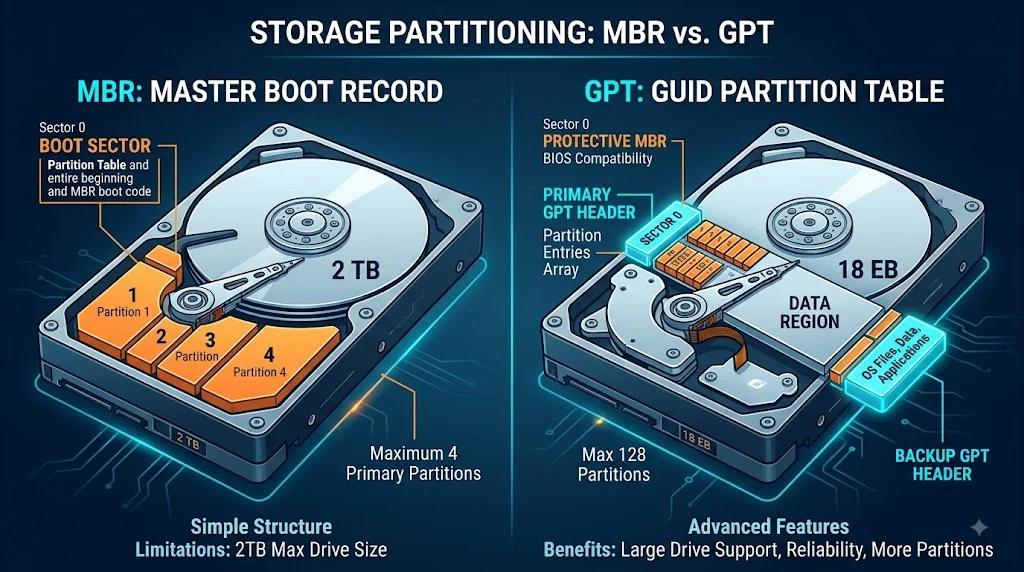
Quick Answer: MBR (Master Boot Record) and GPT (GUID Partition Table) are two competing standards for organizing how data is stored and accessed on a hard drive or SSD , while GPT is the modern standard that handles drives larger than 2TB, supports up to 128 partitions, and works with UEFI systems.
MBR and GPT are two different partition styles used to organize and manage data on a storage drive. MBR (Master Boot Record) is the older standard, while GPT (GUID Partition Table) is the newer and more advanced option designed for modern computers.
Choosing between MBR and GPT depends on your system’s motherboard, boot mode, operating system, and drive size. In most modern PCs using UEFI, GPT is the recommended choice because it offers better compatibility, larger drive support, and more partition flexibility.
MBR vs GPT: What’s the Difference?
GUID Partition Table (GPT) is the newer standard, developed as part of the UEFI initiative. Instead of cramming everything into a single sector, GPT uses a more sophisticated structure. It begins with a protective MBR (for backward compatibility), followed by the primary GPT header, partition entries, and a backup copy of all this data stored at the end of the disk.
This redundant structure provides significantly better data security. If the primary partition table becomes corrupted, the system can automatically recover it from the backup. GPT uses 64 bit addressing, which supports drives up to 9.4 zettabytes, and on Windows, it allows up to 128 primary partitions with no need for the extended partition workarounds that MBR requires.
| Feature | MBR (Master Boot Record) | GPT (GUID Partition Table) |
| Maximum Disk Size | 2TB | 9.4 ZB (zettabytes) |
| Maximum Partitions (Windows) | 4 primary, or 3 primary + 1 extended | 128 primary |
| Boot Mode | Legacy BIOS | UEFI |
| Data Redundancy | None (single point of failure) | Backup partition table at end of disk |
| Data Integrity | No checksum verification | CRC32 checksums for header integrity |
| Introduced | 1983 | Late 1990s |
| Compatibility | All Windows versions, older systems | Windows 11, 10, macOS, modern Linux |
Is MBR vs GPT a Grammar, Vocabulary, or Usage Issue?
This is not a question of grammar or vocabulary. MBR and GPT are not interchangeable terms, and you cannot use them synonymously. They refer to two distinct technical standards with different capabilities, limitations, and use cases. Choosing between them is purely a usage decision based on your specific hardware, operating system, and storage needs.
In formal technical documentation, both terms are used with precise meanings. MBR always refers to the legacy Master Boot Record partitioning scheme, and GPT always refers to the GUID Partition Table standard. In casual conversation among tech enthusiasts, you might hear someone say “just use GPT” as a shorthand recommendation, but that is a usage guideline, not a linguistic substitution.
Academically, computer science courses and IT certification exams treat these as distinct concepts with clear definitions. You would never see a textbook using MBR when they mean GPT, or vice versa. In professional settings, system administrators and IT professionals make this distinction constantly when provisioning new servers, configuring storage arrays, or deploying workstations.
Practical Usage: When to Use MBR
Despite being the older standard, MBR still has legitimate use cases in certain situations. It is not obsolete, and there are scenarios where choosing MBR is actually the correct decision.
Workplace Example
In a corporate environment with legacy hardware, you might have older computers that still use traditional BIOS instead of UEFI. These systems simply cannot boot from a GPT drive. If your company maintains a fleet of older machines for specific tasks, MBR remains the only viable option. Similarly, if you are deploying Windows 7 or older operating systems, MBR is required because those versions do not support booting from GPT.
Academic Example
In a computer science lab, students might be studying low level disk structures or operating system boot processes. MBR’s simpler, more straightforward structure makes it an excellent teaching tool. Its 512 byte boot sector, with the boot code, partition table, and signature all packed into one place, is easier to understand and analyze than GPT’s more complex layout with headers, partition entries, and backup copies.
Technology Example
For small drives under 2TB that will never need more than four partitions, MBR works perfectly fine. If you are setting up a basic storage drive for a media player, a Raspberry Pi, or an older game console, MBR provides all the functionality you need without any downside. The simplicity of MBR also means slightly less overhead, though the difference is negligible for most practical purposes.
MBR Usage Recap: Choose MBR when you are working with drives smaller than 2TB, need compatibility with legacy BIOS systems, are using older operating systems like Windows 7 or XP, or require support for 32 bit systems. For anything else, GPT is the better choice.
Practical Usage: When to Use GPT
GPT is the modern standard for a reason. It removes virtually every limitation of MBR while adding significant reliability improvements. For most users, GPT is the obvious and correct choice.
Workplace Example
A large enterprise deploying new workstations with Windows 11 has no choice but to use GPT. Windows 11 strictly requires UEFI boot and GPT partitioning as part of its Secure Boot and security requirements. Similarly, data centers provisioning high capacity storage servers with drives larger than 2TB must use GPT to access the full capacity of their drives.
Academic Example
In a university research setting, data scientists working with large datasets often need massive storage arrays. A single 8TB drive, common in research workstations, would be completely unusable with MBR beyond the first 2TB. GPT allows researchers to use the full capacity of their drives, storing terabytes of research data without artificial limitations.
Technology Example
For anyone building a new gaming PC or workstation, GPT is the recommended choice. NVMe drives, which are standard in modern systems, are designed to function optimally with UEFI and GPT. The faster boot times, enhanced security features, and greater flexibility of GPT make it the natural choice for any new system.
GPT Usage Recap: Choose GPT when you are using drives larger than 2TB, installing Windows 11 or modern Linux distributions, using UEFI firmware, want better data protection through redundancy and checksums, or need more than four primary partitions. For any new system, GPT is the recommended standard.
When You Should NOT Use MBR or GPT
Understanding when not to use each standard is just as important as knowing when to use them. Here are common scenarios where choosing the wrong one will cause problems.
Do not use MBR when:
- Your drive is larger than 2TB. The extra space will be completely inaccessible and show as unallocated.
- You are installing Windows 11. The installer will refuse to proceed with an MBR partitioned drive.
- Your system uses UEFI firmware. While some UEFI systems can boot MBR in legacy mode, you lose the benefits of UEFI.
- You need more than four primary partitions without dealing with extended partition workarounds.
- You want the redundancy and data integrity features that GPT provides.
- You are using an NVMe drive as a boot drive. Legacy BIOS and MBR lack native support for NVMe booting.
Do not use GPT when:
- Your system uses legacy BIOS that does not support UEFI. GPT drives cannot boot on these systems.
- You are installing an older operating system like Windows XP or Windows 7 that lacks GPT boot support.
- You need compatibility with very old hardware or specialized legacy software.
- Your drive is smaller than 2TB and you have no need for more than four partitions.
- You are booting from a drive on a system that does not support UEFI.
- You are creating a drive that needs to be portable across very old systems that only understand MBR.
Common Mistakes and Decision Rules
| Correct Sentence | Incorrect Sentence | Explanation |
| Use GPT for any drive larger than 2TB. | Use MBR for any drive larger than 2TB. | MBR cannot address space beyond 2TB, so the extra capacity is wasted. |
| Windows 11 requires a GPT partitioned drive. | Windows 11 can run on MBR with a workaround. | Microsoft officially requires GPT for Windows 11 installation. |
| Legacy BIOS systems need MBR to boot. | Legacy BIOS systems support GPT booting. | Legacy BIOS cannot boot from GPT drives without UEFI. |
| GPT stores backup partition tables at the end of the disk. | MBR stores backup partition tables. | MBR has no redundancy; corruption in the boot sector can render the drive unusable. |
| Use GPT for modern NVMe SSDs. | MBR works perfectly with NVMe boot drives. | NVMe drives are designed for UEFI and GPT; legacy MBR lacks native NVMe boot support. |
Decision Rule Box
If you are setting up a new system or drive, use GPT unless you have a specific reason not to.
- If you mean to access the full capacity of a drive larger than 2TB, use GPT.
- If you mean to install Windows 11 or a modern operating system, use GPT.
- If you mean to boot from an NVMe drive, use GPT.
- If you mean to have more than four partitions, use GPT.
- If you mean to use a legacy system with BIOS and a drive under 2TB, use MBR.
- If you mean to use an older operating system that does not support UEFI, use MBR.
MBR and GPT in Modern Technology and AI Tools
The distinction between MBR and GPT has become increasingly important as storage technology has evolved. Modern AI workloads, machine learning training, and big data analytics often require massive storage capacities. A single AI training dataset can easily exceed 2TB, making GPT not just a recommendation but a necessity.
Cloud service providers like AWS, Azure, and Google Cloud use GPT for their virtual machine images and storage volumes. When you spin up a new instance, the underlying storage is partitioned with GPT to support the large volumes modern applications require. Data recovery tools and partition management software have also adapted, with most modern utilities supporting conversion between MBR and GPT without data loss.
Even operating system installers have evolved. Windows 11’s setup program actively checks for GPT and UEFI, refusing to install on MBR systems. Linux distributions have similarly moved toward GPT as the default, with many installers automatically using GPT for new installations on UEFI systems. This shift reflects the industry wide recognition that GPT is the future and MBR is a legacy standard for specialized use cases.
Authority and Trust: The History Behind the Standards
The etymology of these terms reveals their origins and intended purposes. MBR, or Master Boot Record, gets its name from the boot sector located at the very beginning of a drive. This sector contains the “master” boot code that initiates the boot process, hence the name. It was a straightforward solution for the limited hardware of the early 1980s.
GPT, or GUID Partition Table, takes its name from the Globally Unique Identifiers assigned to each partition. The GUID system ensures that every partition on every drive has a unique identifier, eliminating the conflicts that could occur with MBR’s simpler numeric partition IDs. This was part of the larger UEFI initiative to replace the aging BIOS standard with something more modern and capable.
Expert Insight: As one senior storage engineer at a major cloud provider noted, “The transition from MBR to GPT is not just about capacity. It is about reliability. When you are managing thousands of drives in a data center, the redundancy and error checking that GPT provides are absolutely essential. MBR’s single point of failure is unacceptable at scale.”
Case Study 1:
A mid sized company with 200 workstations was experiencing frequent boot failures on older machines. Investigation revealed that MBR corruption was the culprit in 60% of cases. After migrating to new hardware with GPT and UEFI, boot failures dropped by 90%. The redundancy built into GPT meant that even when corruption occurred, the system could recover automatically from the backup partition table at the end of the disk.
Case Study 2:
A video production studio purchased a 10TB drive for their editing workstation. They initialized it as MBR by mistake, not realizing the limitation. After filling the drive with project files, they discovered that only 2TB was accessible. They had to purchase additional software to convert the drive to GPT without losing data, a process that took several hours and caused significant downtime. Had they chosen GPT from the start, they would have had full access to all 10TB immediately.
Error Prevention Checklist
Always use GPT when:
- Your drive capacity exceeds 2TB
- You are installing Windows 11
- Your system uses UEFI firmware
- You want automatic data recovery from partition table corruption
- You need more than four primary partitions
- You are using an NVMe SSD as your boot drive
- You are setting up a new computer or drive with no legacy constraints
Never use MBR when:
- Your drive is larger than 2TB
- You are installing Windows 11
- You want the data redundancy and integrity features of GPT
- You have a UEFI system and want the benefits of modern booting
- You need more than four partitions without extended partition workarounds
- You are using an NVMe drive
- You care about future compatibility and modern standards
Related Grammar Confusions You Should Master
Understanding MBR versus GPT is just one of many technical distinctions that often confuse users. Here are other related topics you should know:
- BIOS versus UEFI – The firmware that controls booting, closely tied to MBR and GPT.
- NTFS versus FAT32 – Different file systems with their own capacity and compatibility limits.
- HDD versus SSD – Different storage technologies with different performance characteristics.
- SATA versus NVMe – Different interfaces for connecting drives to your computer.
- Primary versus Extended Partitions – The old MBR way of organizing more than four partitions.
- Logical versus Physical Drives – Abstracting storage across multiple physical devices.
- RAID 0 versus RAID 1 versus RAID 5 – Different ways of combining drives for performance or redundancy.
- TRIM versus Garbage Collection – SSD maintenance features that affect performance and longevity.
- Secure Boot versus Legacy Boot – Security features in UEFI that require GPT.
- MBR Protective versus MBR Boot – The different roles MBR plays on GPT drives.
FAQs
1. Can I use GPT on an SSD?
Yes, GPT is recommended for modern SSDs, especially with UEFI-based systems.
2. Does GPT work with Windows 11?
Yes, GPT is required for Windows 11 when using UEFI and Secure Boot.
3. Can I convert MBR to GPT?
Yes, you can convert MBR to GPT using tools such as MBR2GPT, but backing up your data first is recommended.
4. Which is better, MBR or GPT?
GPT is generally better for modern computers because it supports larger drives and more partitions.
5. Can MBR support drives larger than 2TB?
MBR has a practical 2TB partition limit, while GPT supports much larger drives.
6. How do I check whether my drive is MBR or GPT?
You can check the partition style through Windows Disk Management or the diskpart command.
7. Does GPT make a drive faster than MBR?
No, there is no meaningful performance difference; the main differences are compatibility, capacity, and features
Conclusion
In conclusion, GPT is generally the better choice for modern computers because it supports larger drives, more partitions, and UEFI-based systems. It also provides a more reliable and flexible partitioning structure than MBR.
MBR can still be useful for older computers that rely on Legacy BIOS, but it has several limitations. If your system supports UEFI, choosing GPT is usually the recommended option for better compatibility and long-term use.

Margaret Atwood is an American writer who contributes to LingRoya.com creating clear and engaging content about the English language and everyday communication. She enjoys helping readers build confidence in their writing through simple, practical guidance.